
Your footage stays private
Captions appear on the video you export — without parking unfinished drafts in someone else’s cloud.
Free auto captions
Turn speech into timed, editable auto captions in your browser. Style them, fix the timing, and export a captioned MP4 or free SRT/VTT — no install.
Drop a video to caption
MP4, MOV, WebM, or MKV. Drop a clip — get captions you can style and export.
Captions appear on the video you export — without parking unfinished drafts in someone else’s cloud.
Karaoke, Bangers, and emoji presets turn plain auto captions into scroll-stopping text.
Original, 9:16, 1:1, and more — so captioned clips fit every feed.
Free subtitle generator
A free AI subtitle generator turns spoken audio into timed text, then styles those lines as on-screen captions. Creators search for this when they need mute-friendly subtitles without hiring an editor or installing a desktop suite.
AutoCaptions is a free subtitle generator you can open and use right away: drop a video, get auto captions, restyle the lines, and export an MP4 with captions that stay on the video. The goal is a post-ready clip — not a plain transcript dump.
Unlike generic caption dumps, this AI subtitle generator focuses on how captions look in the feed — presets, emoji, aspect ratios — so you finish with subtitles people can actually read on mute.

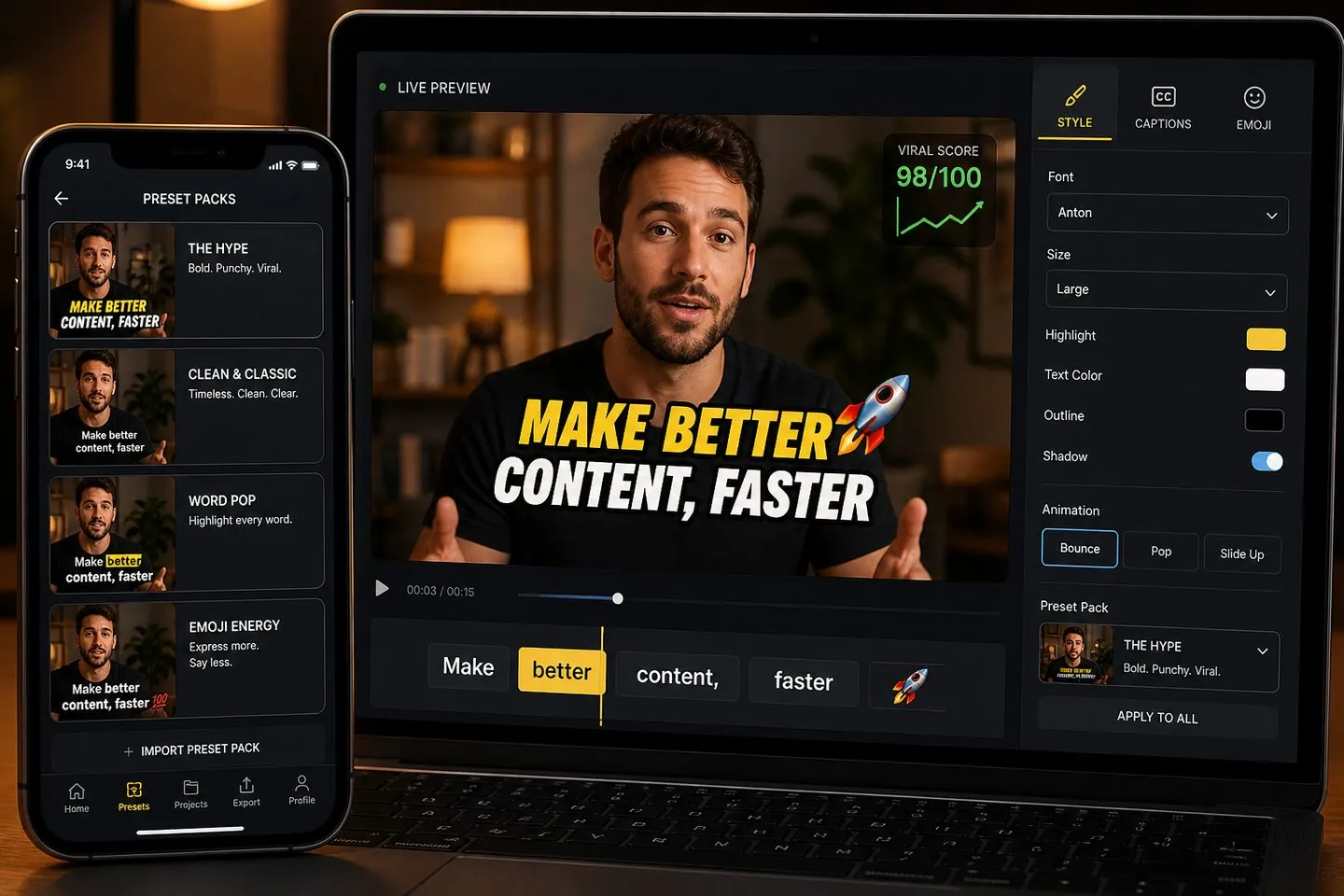
Styles that stop the scroll
After transcription finishes, preview viral caption presets on your actual footage. Word-highlight, karaoke, and emoji styles keep auto captions readable on mute — then fine-tune timing, translate, and typography in the same studio.
Keep drafts private
Many caption tools ask you to upload the entire file before you see text. AutoCaptions lets you finish captions and export a post-ready clip without parking sensitive takes in a random cloud folder.
Built for creators who ship unfinished drafts
Course authors, coaches, and UGC teams can add subtitles to sensitive takes and export with confidence.
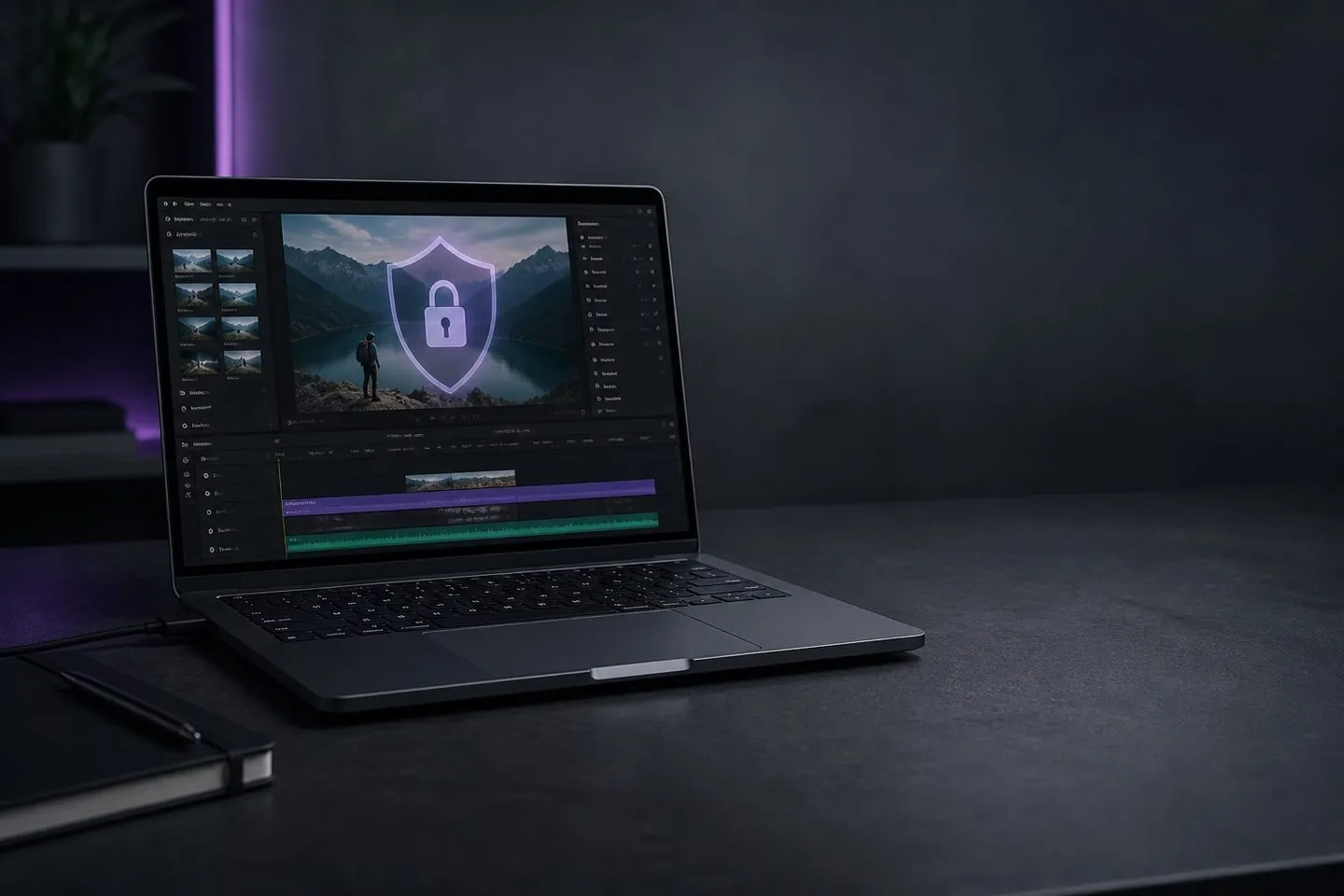
No install. No project files. Drop a clip, style your subtitles, export burned-in captions.
01
Drop a clip and get timed captions on your video.
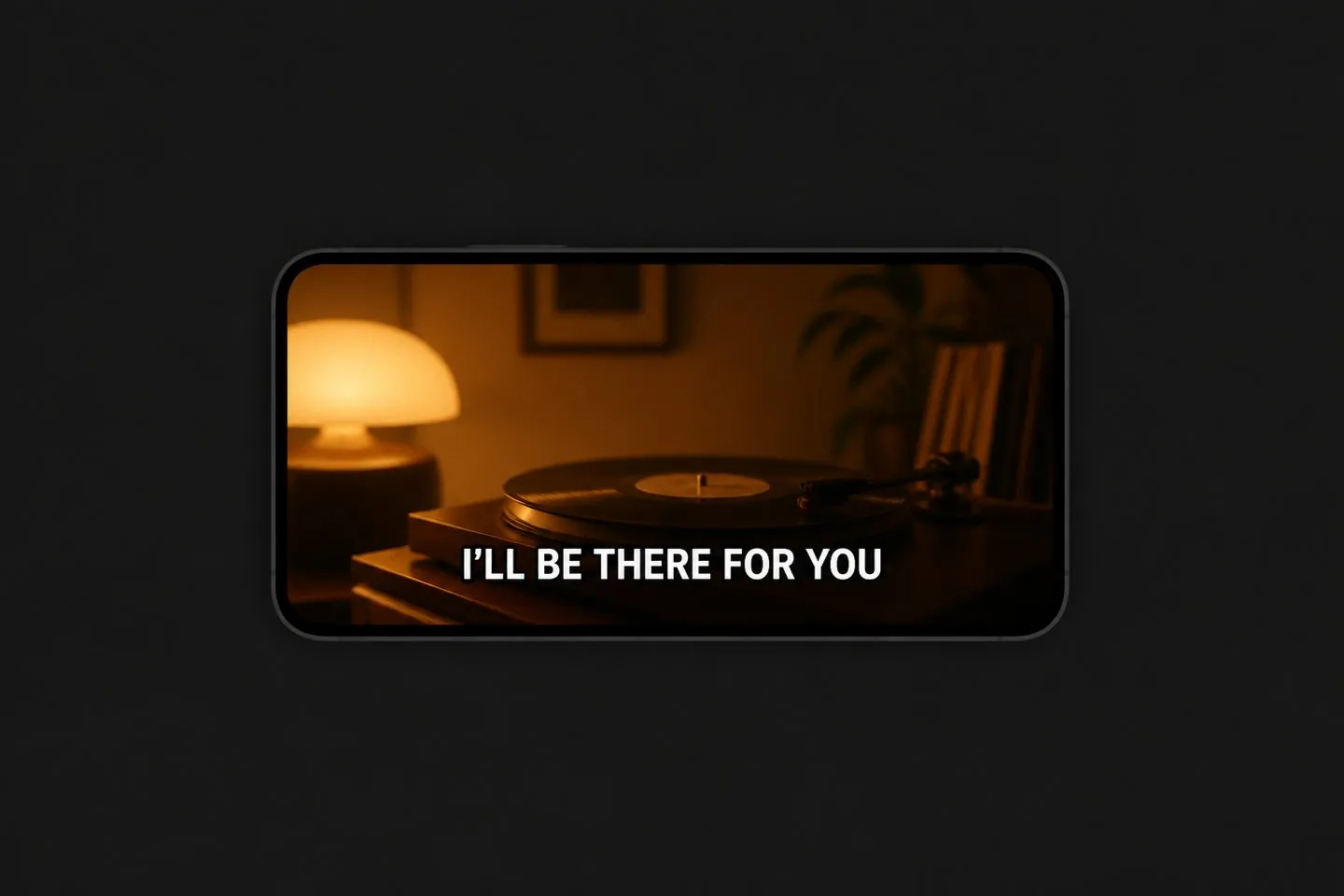
02
Pick viral presets, fix timing on the timeline, and match any aspect ratio before you export.
03
Export an MP4 with captions baked in — ready to post.
If you ship talking videos weekly, you need auto captions that look intentional — not a blank transcript. Keep the path from speech to burned-in text short.

You need mute-friendly auto captions the same day you shoot. Drop a clip, set 9:16, apply a viral style, and export burned-in text that still reads in the feed.
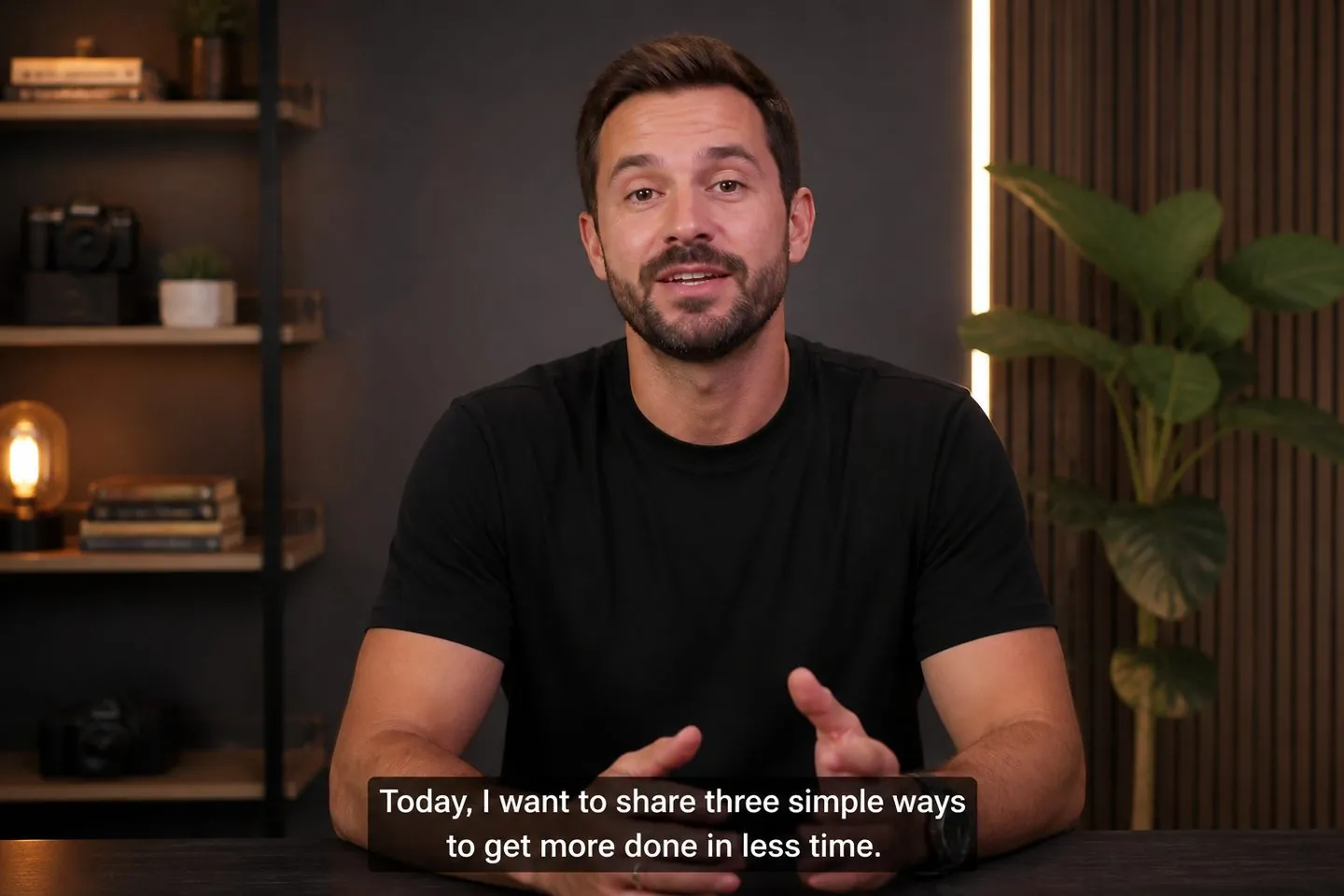
Talking-head videos and Shorts both need readable subtitles. Generate captions once, resize the canvas, and keep captions on the video for silent playback.
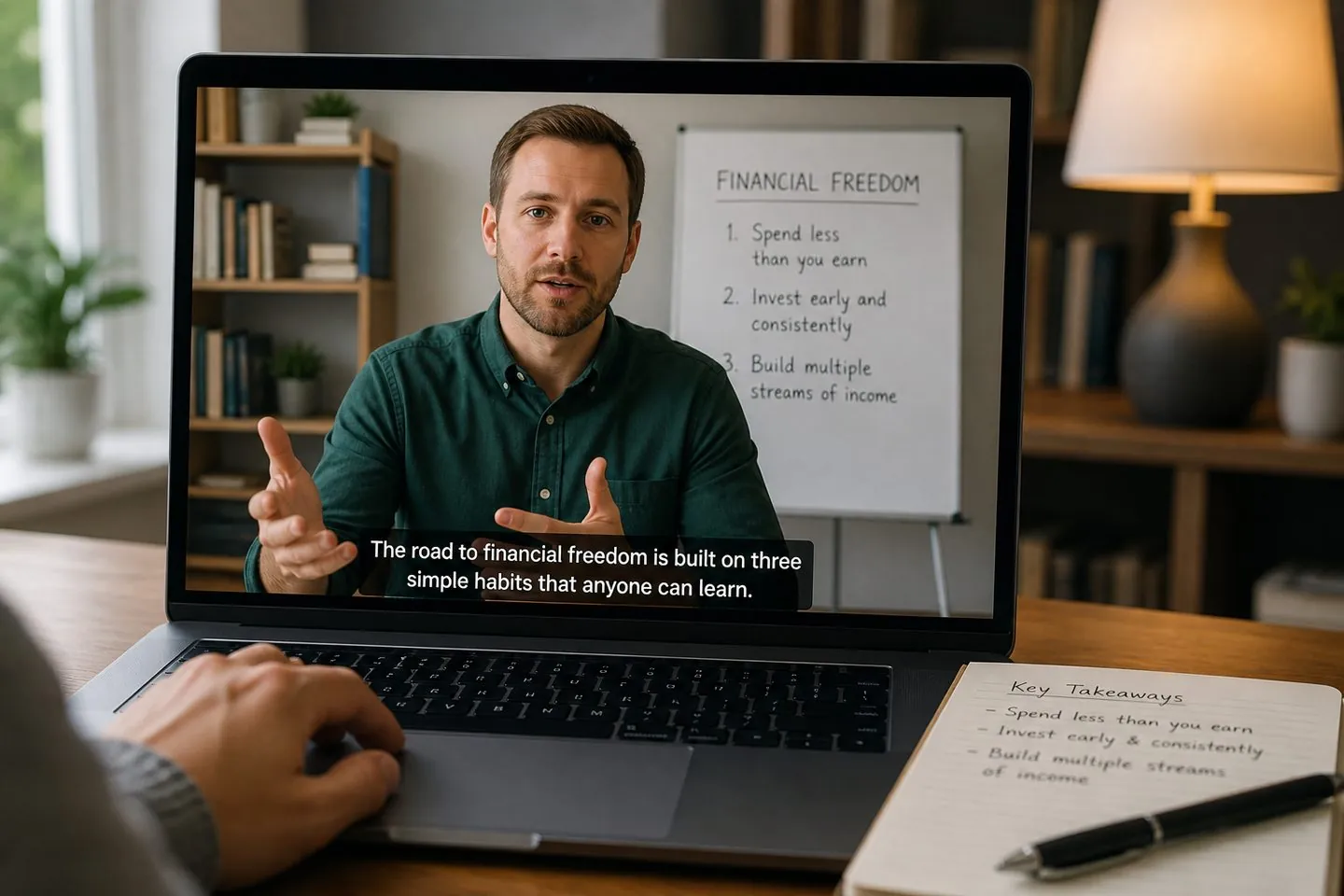
Lesson drafts need on-screen text without parking unfinished footage in a random cloud. Caption lessons so students can follow every line.
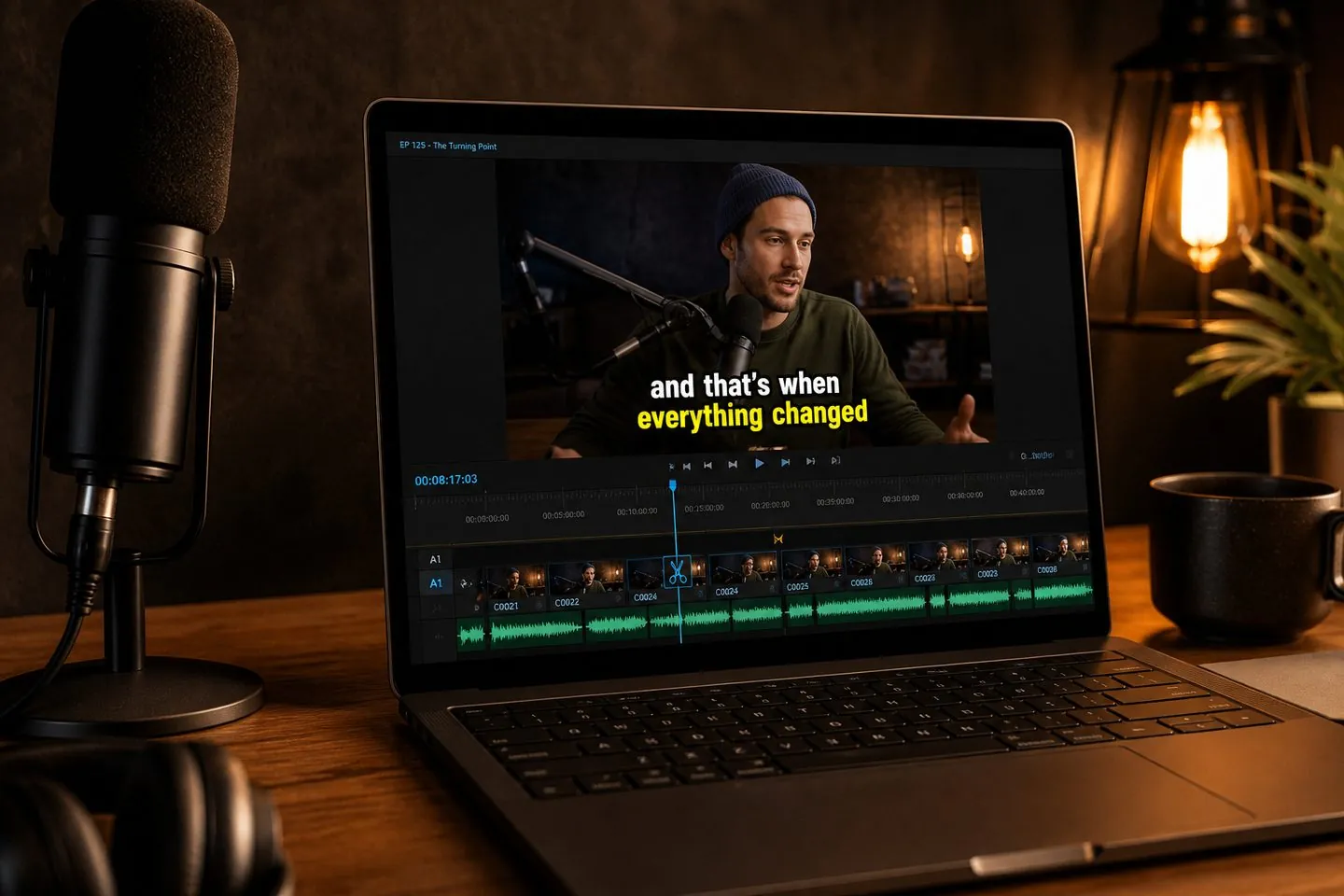
Turn long episodes into short clips with clear captions. Speech becomes styled subtitles you can bake into the cut before you publish.
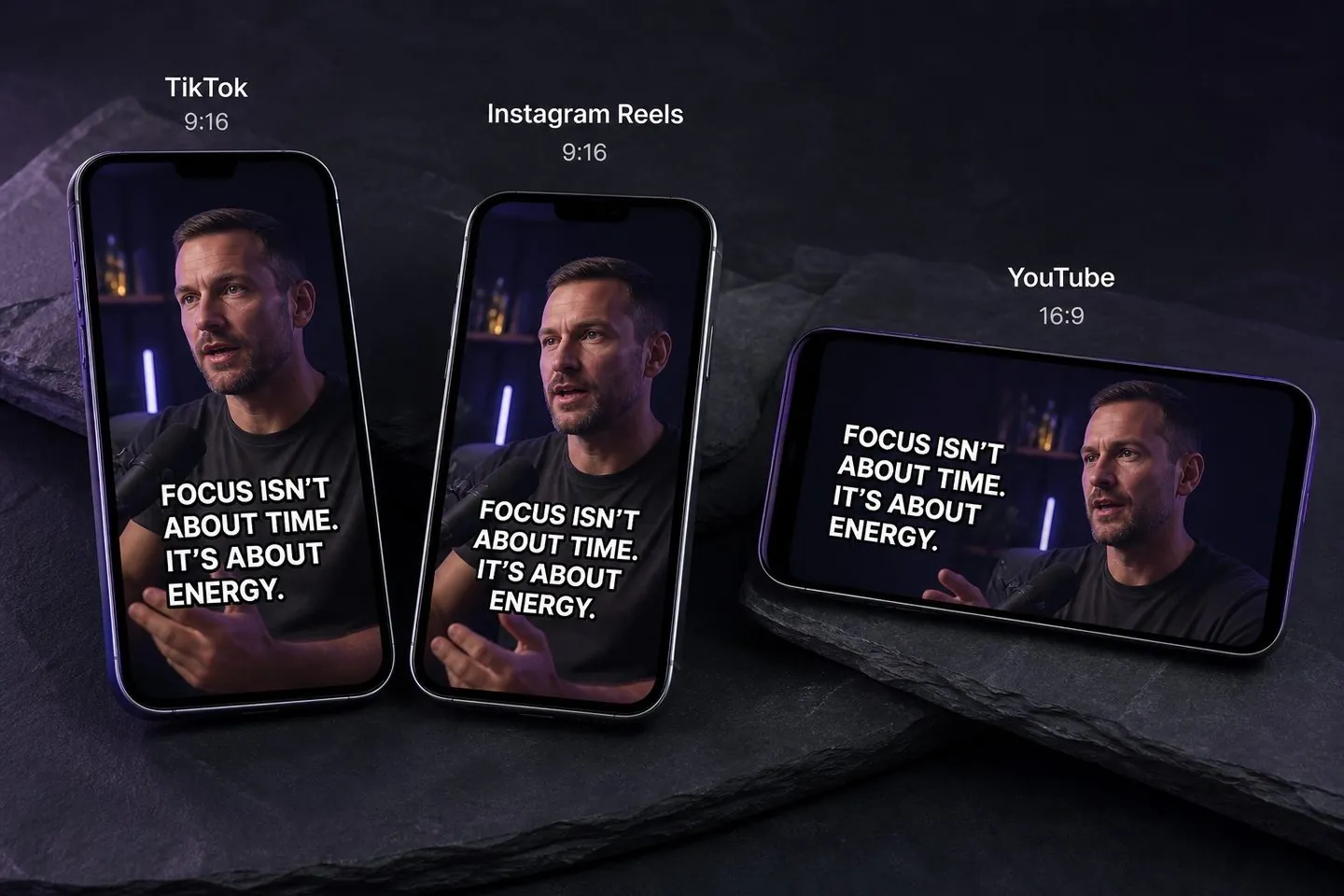
Built for feeds
Mute-friendly captions are table stakes on TikTok, Reels, and Shorts. After auto captions land, resize the canvas, keep your style, and export a burned-in MP4 in the same session — or open the YouTube subtitle generator for a 16:9 default.
Plenty of tools can spit out text. AutoCaptions aims at burned-in captions you can actually post.
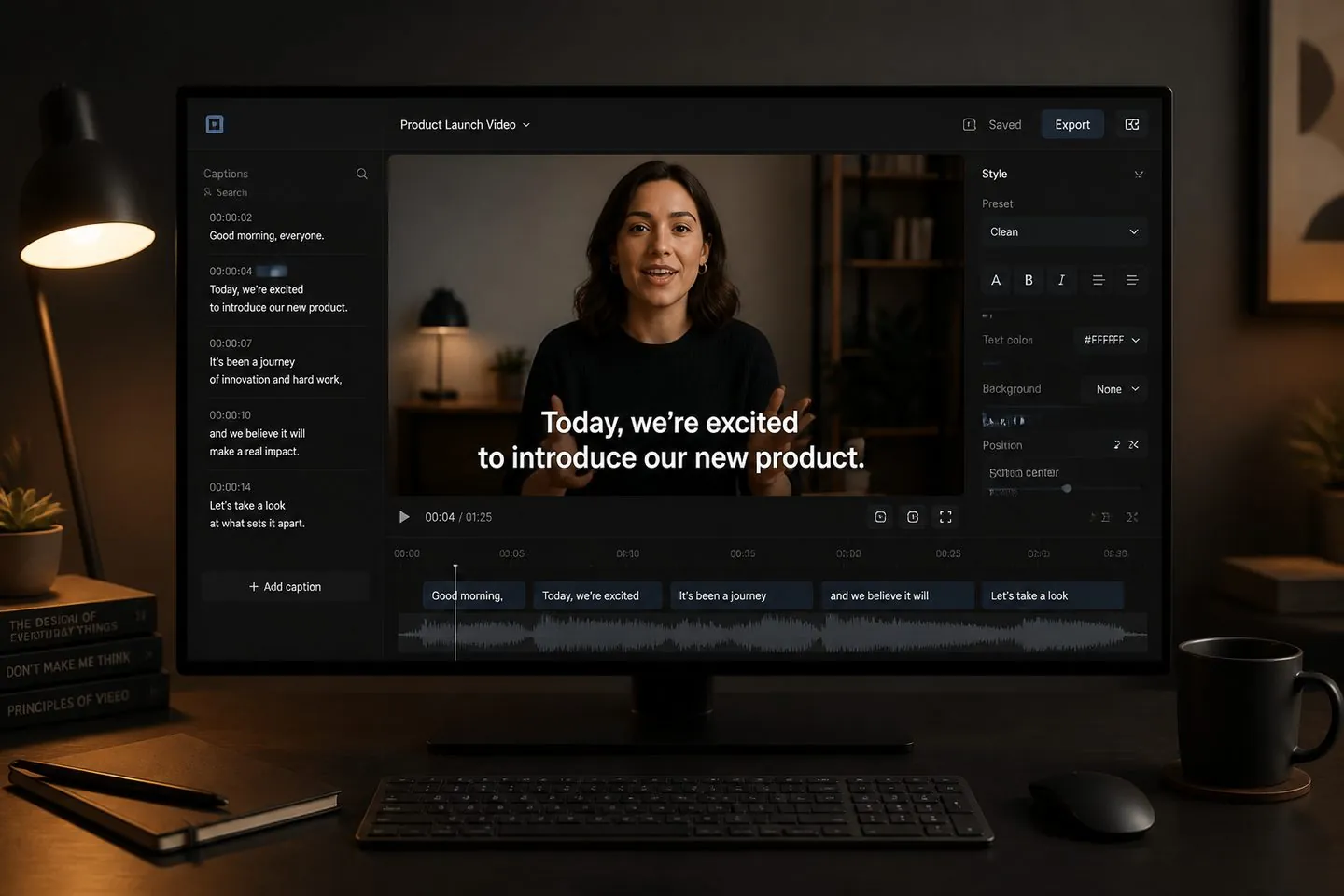
Export an MP4 with captions baked in — ready to post the same day, without waiting on a long cloud render queue.
Timeline edits, presets, translate, and canvas ratios live in one studio — open from the dropzone above.
Switch to 9:16, 16:9, or original so captions sit correctly for Shorts, Reels, and long-form in one pass.
From viral presets to translation and clip tools — everything lives in the same studio. Plan details are on pricing.
Semantic emoji and karaoke-style presets turn plain auto captions into scroll-stopping subtitles.
Auto caption generatorAdd AI translation tracks so the same clip can speak to more audiences without re-editing timing from scratch.
Subtitle translatorAuto Clips, multi-speaker coloring, and keyword highlights help denser talking videos stay readable. Need cue files? Open the SRT generator after captions exist.
SRT generatorStraight answers about AI captions, privacy, and short-form workflows.
Look for accurate captions, styles that work muted, and an export you can post the same day. AutoCaptions is built for short-form: drop a clip, style auto captions, and export an MP4 with captions that stay on the video.
Both. Our AI subtitle generator turns speech into captions you can edit and style. “Auto captions” is the fast path; you still control wording, timing, and look before export.
You open the tool and export a captioned video — no long cloud render queue to wait on. Your footage stays private while you finish captions.
Yes — after captions generate you can download .srt, .vtt, and .txt from the export menu, or keep captions baked into the video. Try the dedicated SRT generator, or see pricing for plan details.
Yes. After captions generate, set the canvas to 9:16, 1:1, or other ratios so your subtitles sit correctly for each feed. Start from the TikTok caption generator or Instagram Reels subtitles tool pages for a 9:16 default.
Desktop suites are great for full edits. AutoCaptions is built for captions you can style and post, without another heavy desktop project. Read AutoCaptions vs CapCut for a side-by-side guide.
Transcription and translation cover the languages available in the editor. Generate captions in the source language, then use the subtitle translator when you need bilingual or localized subtitles.
Plan limits and upgrades live on the pricing page. This page is about finishing captions — open the tool above when you are ready to caption.
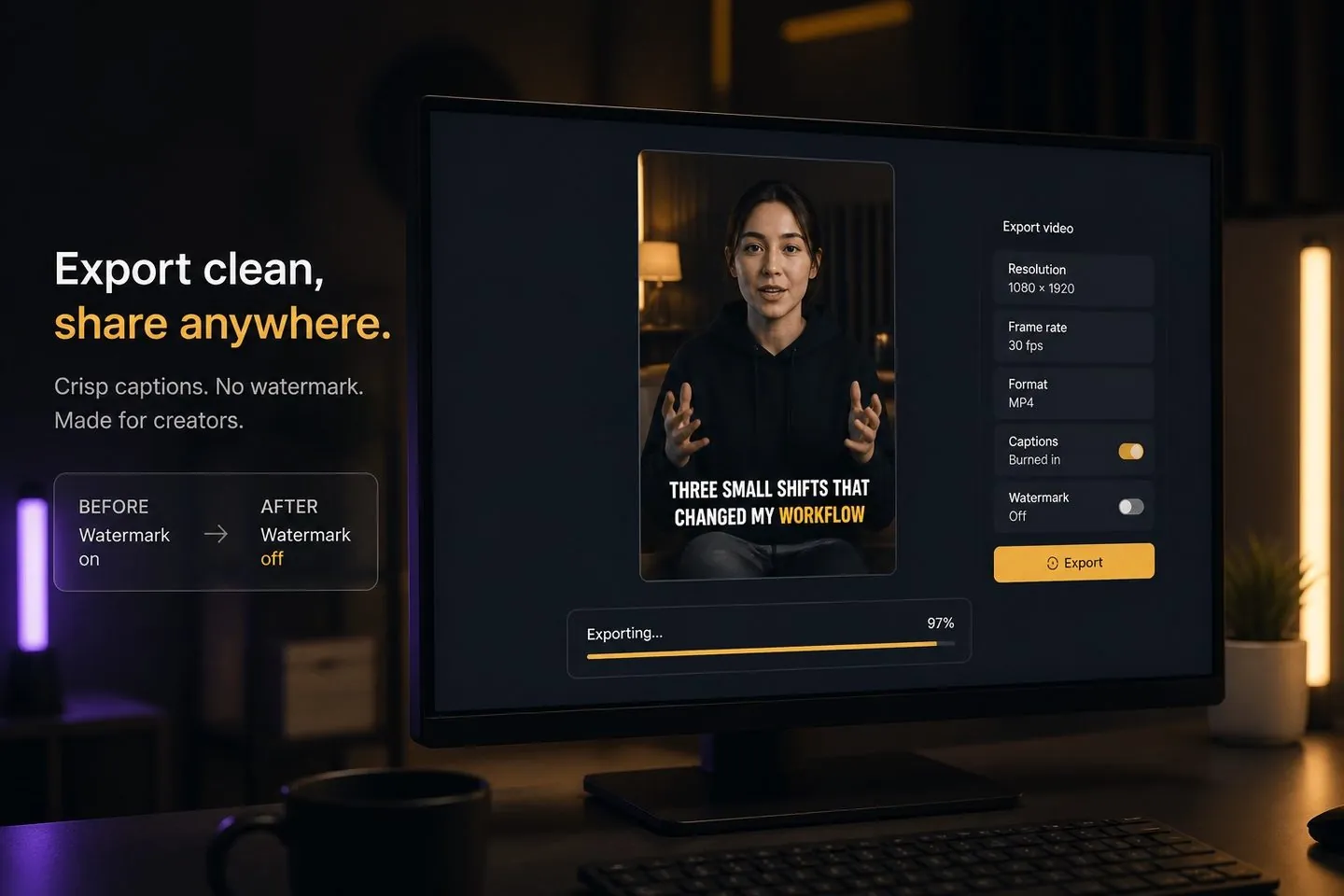
Drop a clip above, style auto captions in the studio, and export burned-in subtitles for the feed you ship to. Need plan details? Visit pricing anytime.