Stay with AutoSubtitles if…
Creators who already like the AutoSubtitles workflow · Caption-only jobs without a full video editor · Browser-based burn-in exports
Comparison
TL;DR: AutoSubtitles and AutoCaptions are peers in the same category — browser caption tools with Free watermarked exports. Compare studio feel and Max extras (multi-speaker, Auto Clips, keyword highlight). Stay if you already love AutoSubtitles; try AutoCaptions if you want that alternate studio.
Why people look
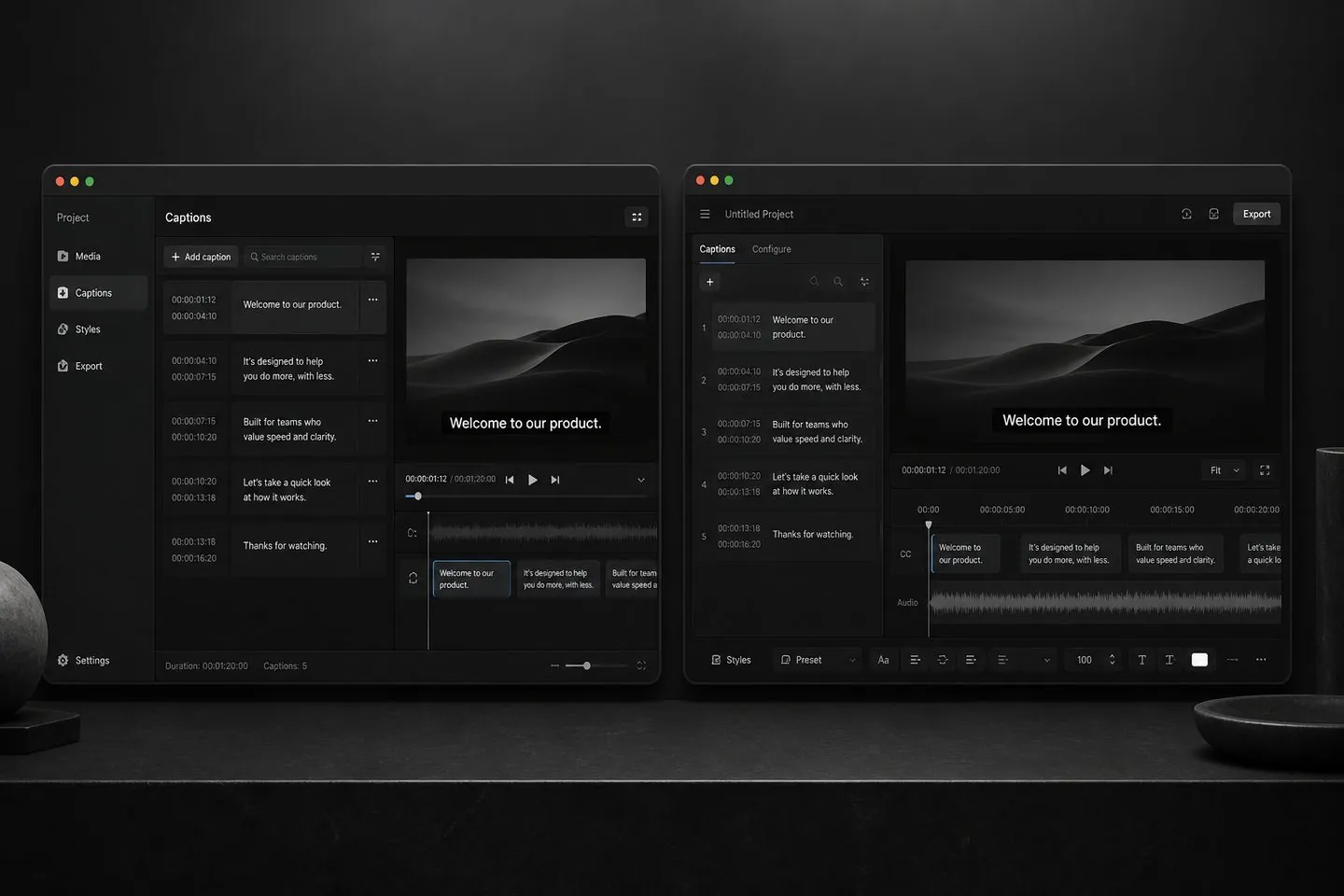
Switches between AutoSubtitles and AutoCaptions are peer moves, not category jumps. Creators compare studio layout, Max-tier tools, and which Free → Pro path feels clearer — not whether captions belong in the browser.
At a glance
A quick read of how AutoCaptions and AutoSubtitles differ when the job is captions. Details below explain when each side wins.
| Dimension | AutoCaptions | AutoSubtitles |
|---|---|---|
| Category | Browser caption studio | Browser caption studio |
| Free to start | Yes — watermarked export | Yes — watermarked export |
| Pro focus | No watermark, HD, translate, styles | No watermark + pro caption extras |
| Max / power tier | Multi-speaker, Auto Clips, keyword highlight | Check their current top tier |
| Studio modes | Simple + Full on the same project | Their editor layout |
| Why compare | Same job — pick the studio you prefer | Same job — pick the studio you prefer |
Captions & workflow
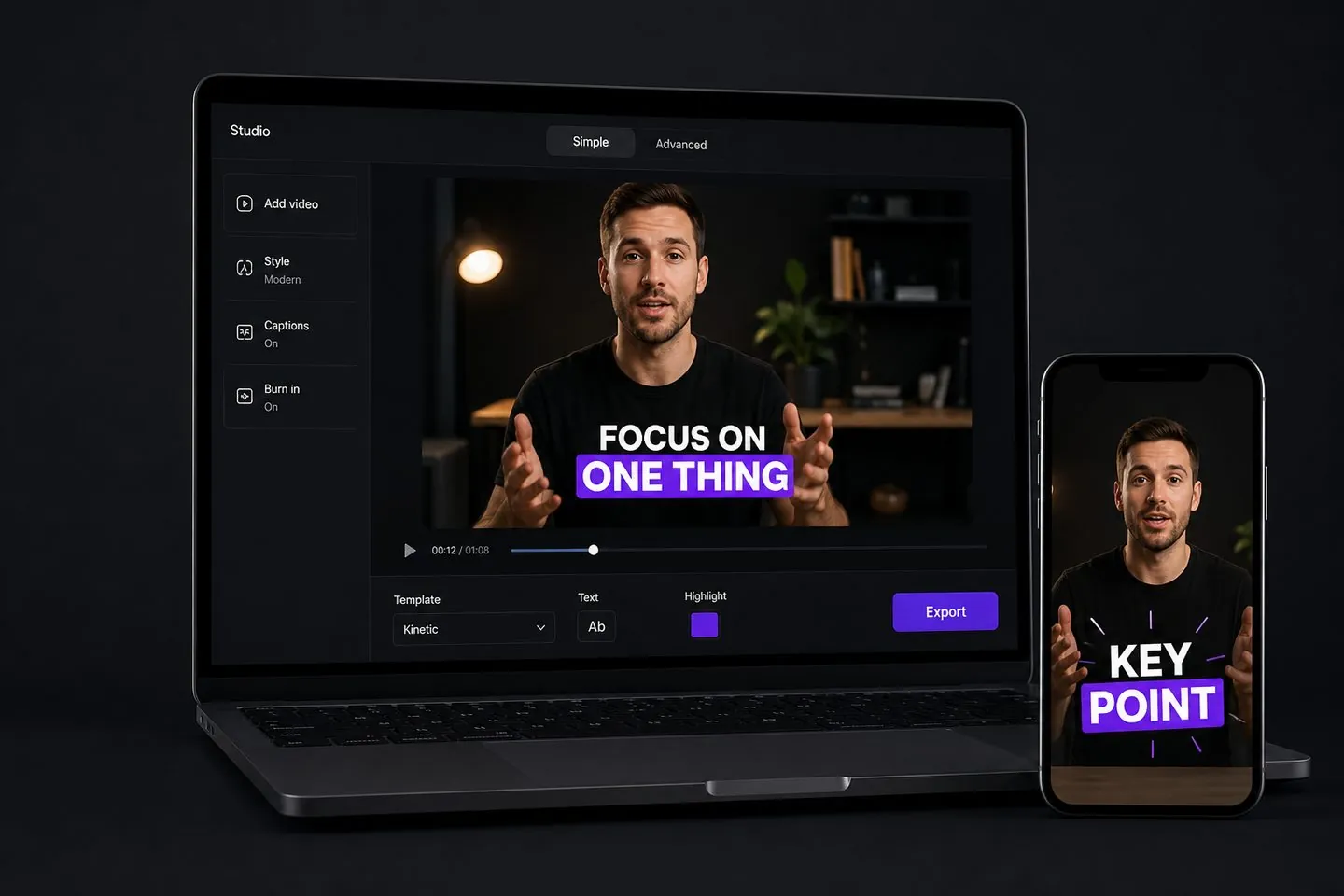
Both tools follow generate → edit → style → export in the browser. AutoCaptions adds Simple and Full studio modes on the same project, plus a Max tier aimed at multi-speaker captions, Auto Clips, and keyword highlighting. Try both on one clip and keep the studio you prefer.
Pricing & value
AutoSubtitles: Free with watermark; Pro removes watermark (same broad model as AutoCaptions). AutoCaptions keeps Free usable for real caption work (with a AutoCaptions watermark and 720p), then Pro from about $9.99/month for clean HD exports. Pricing models are similar by design — decide on features and editor feel, not a fake “free forever, no watermark” claim from either side.
Who it’s for
Different tools fit different jobs. Stay where the product matches the work — switch when captions are the real bottleneck.
Creators who already like the AutoSubtitles workflow · Caption-only jobs without a full video editor · Browser-based burn-in exports
Want Max tools: multi-speaker, Auto Clips, keyword highlight · Prefer AutoCaptions Simple / Full studio modes · Trying an alternate caption brand with similar Free → Pro path
Caption-first browser workflow · Free to start with styled caption presets · Familiar generate → edit → export path
Caption generate, style, and burn-in · Browser studio without a full NLE · Clear Free → Pro → Max plans for subtitle work
How to switch
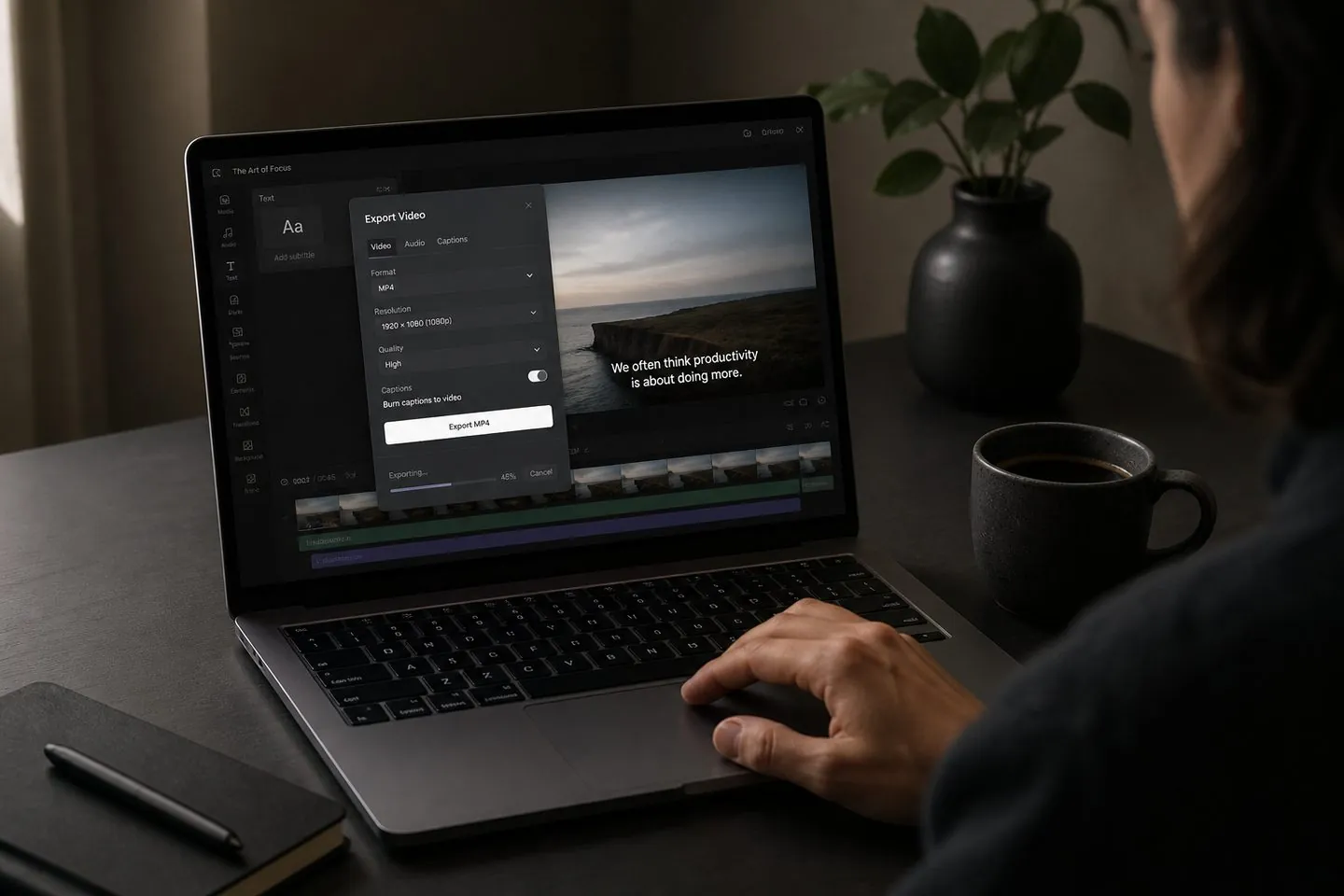
There is no fake one-click project import from AutoSubtitles. Export or download the finished clip, then drop it into AutoCaptions. Generate captions, restyle, and export again. Most caption-only switches take one short session.
Yes if you want another browser caption studio with Simple/Full modes and Max tools. Stay on AutoSubtitles if that workflow already fits — both products target the same job.
Same category. AutoCaptions highlights Simple/Full studio modes and Max features (multi-speaker captions, Auto Clips, AI keyword highlighter). Feature lists on both sides change — compare current plans before you commit.
You can use the full caption editor free. Free exports include a watermark and 720p limit. Pricing lists Pro and Max for clean HD and extras.
Creators who already like the AutoSubtitles workflow Caption-only jobs without a full video editor Browser-based burn-in exports
Yes. Set the canvas to 9:16 (or other ratios) after captions generate. Start from the TikTok caption generator or Instagram Reels subtitles pages for short-form defaults.
Export your video from AutoSubtitles, open AutoCaptions, drop the file, generate captions, style, and export the burned-in MP4.
Open the free subtitle generator, drop a clip, and export styled captions in the browser.
Try free