
Stay with CapCut if…
Creators who cut, effect, and caption in one timeline · Mobile-first short-form editing end to end · Projects that need more than subtitles
Comparison
TL;DR: CapCut is a full video editor with captions inside a larger timeline. AutoCaptions is built for generate → style → burn-in in the browser. Choose CapCut if you need effects and a full cut. Choose AutoCaptions if captions are the job.
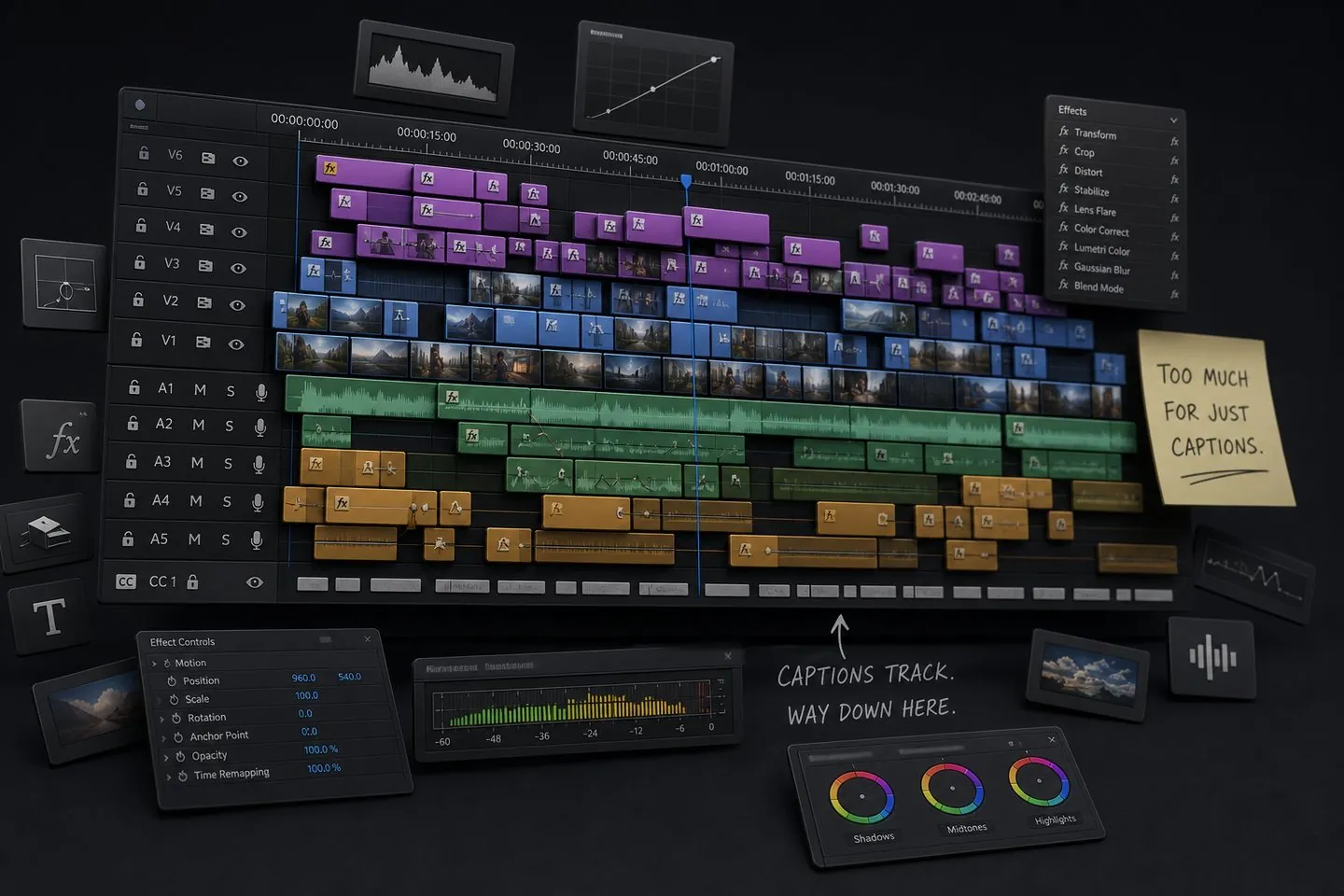
Why people look
Creators search for a CapCut alternative when the clip is already cut and they only need accurate, styled captions. Opening a full editor for burn-in subtitles adds friction — especially on desktop projects built for effects, not a quick caption pass.
At a glance
A quick read of how AutoCaptions and CapCut differ when the job is captions. Details below explain when each side wins.
| Dimension | AutoCaptions | CapCut |
|---|---|---|
| Primary job | Captions: generate, style, burn-in | Full video editing + captions |
| Where it runs | Browser | Mobile / desktop / web |
| Start without an account | Yes — open and drop a video | Account typically required |
| Caption styles | Viral presets + full style controls | Strong templates inside the editor |
| Free export | Watermarked 720p trial | Often watermark-free for basic edits |
| Paid caption extras | Pro removes watermark; Max adds clips & speakers | Pro for advanced AI / export tiers |
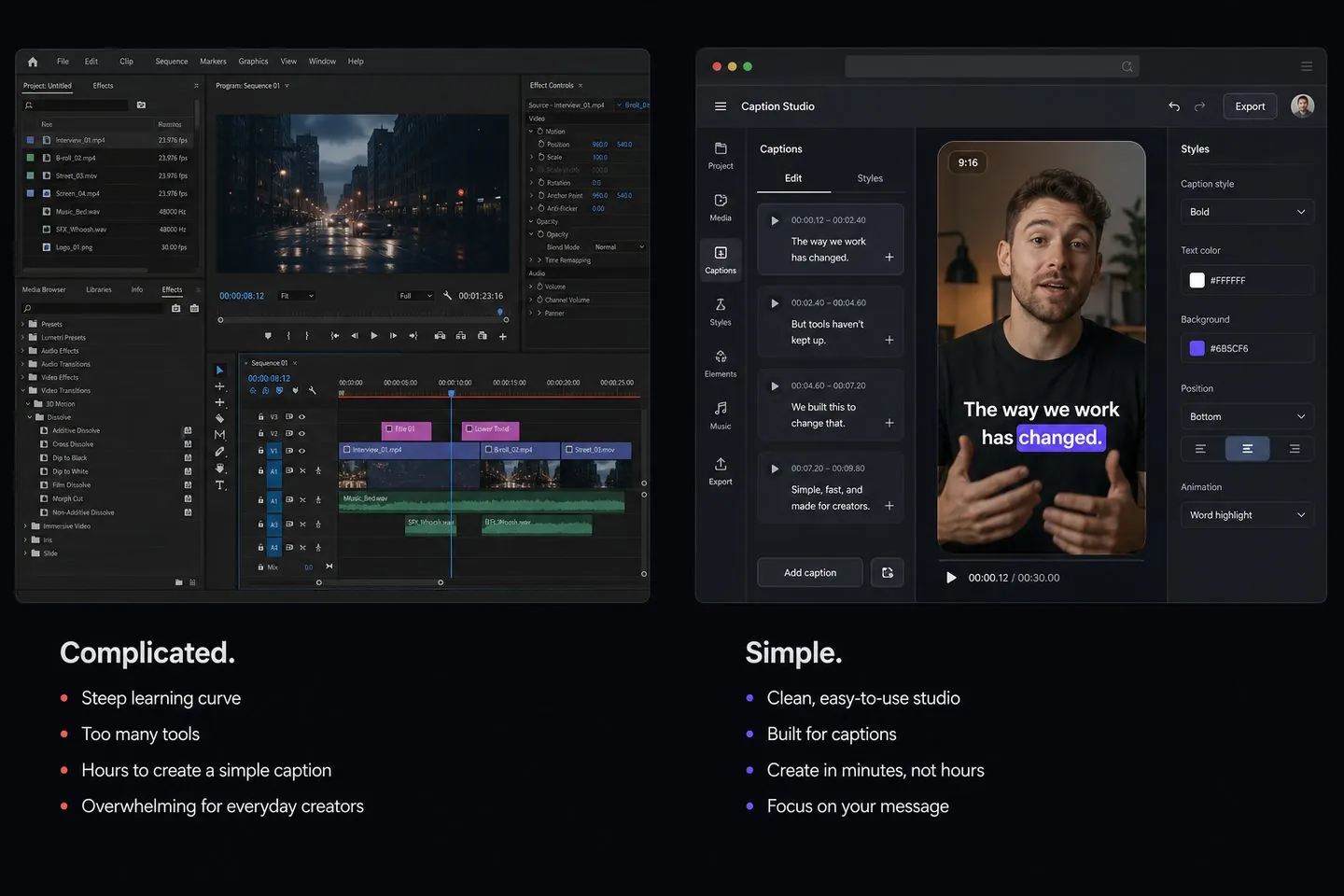
Captions & workflow
CapCut keeps captions inside a broader edit: great when you are still cutting B-roll and effects. AutoCaptions assumes the picture is done. You drop the file, generate cues, fix wording, apply a preset, and export an MP4 with captions that stay on the video.
Pricing & value
CapCut: Generous free editing tier; Pro unlocks more AI and export options (pricing varies by region). AutoCaptions keeps Free usable for real caption work (with a AutoCaptions watermark and 720p), then Pro from about $9.99/month for clean HD exports. Pay for caption depth when that is the job; keep a full editor when you still need the rest of the suite.
Who it’s for
Different tools fit different jobs. Stay where the product matches the work — switch when captions are the real bottleneck.
Creators who cut, effect, and caption in one timeline · Mobile-first short-form editing end to end · Projects that need more than subtitles
Only need auto captions + styles + export · Do not want to open a full CapCut project for subtitles · Prefer a focused browser tool
Deep timeline, effects, transitions, and templates · Strong free tier for general editing · Mobile-first workflows popular for TikTok-style clips
Caption generate, style, and burn-in · Browser studio without a full NLE · Clear Free → Pro → Max plans for subtitle work
How to switch
There is no fake one-click project import from CapCut. Export or download the finished clip, then drop it into AutoCaptions. Generate captions, restyle, and export again. Most caption-only switches take one short session.
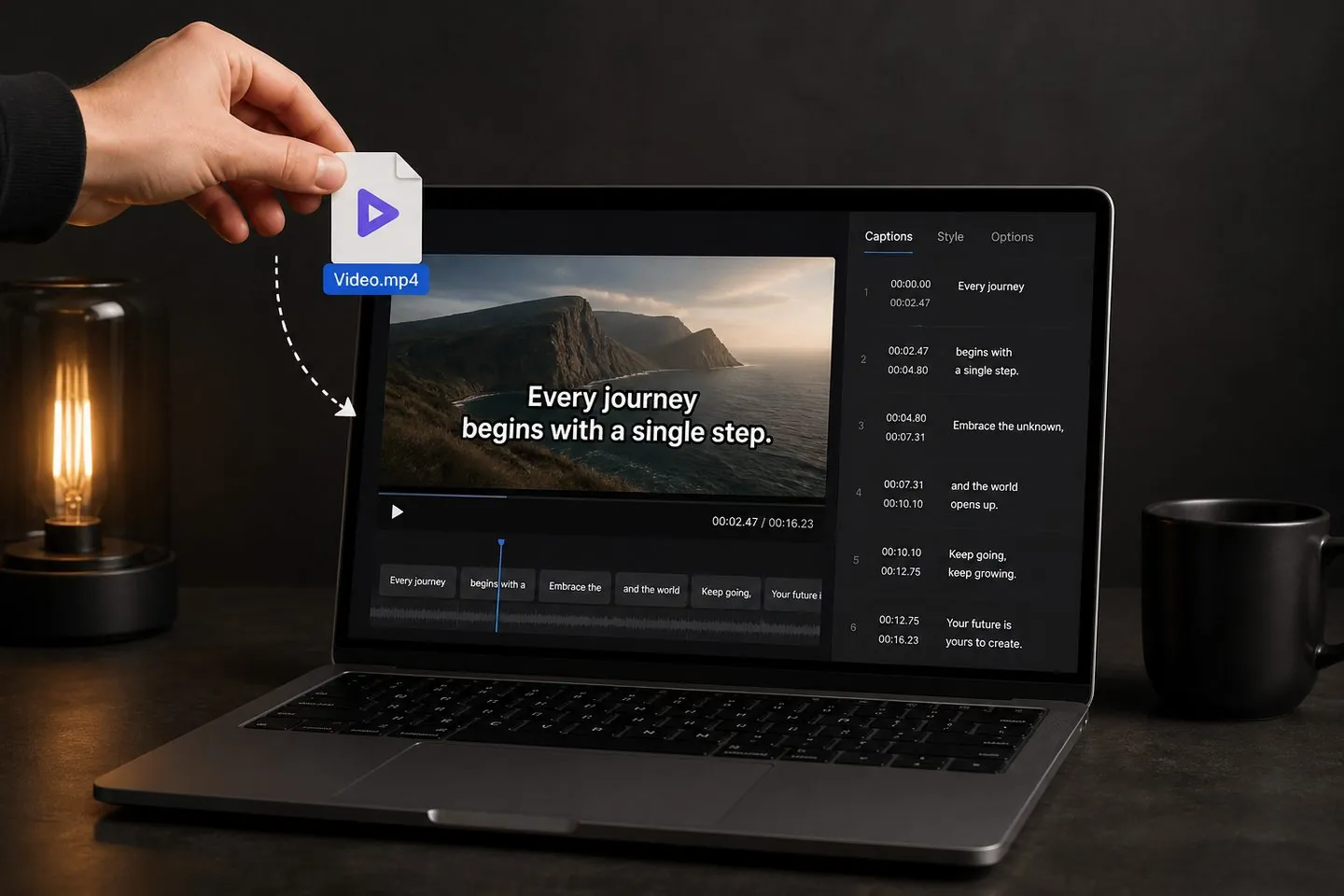
Yes when your job is captions: generate, style, and burn-in without a full CapCut project. Keep CapCut when you still need its broader editing or suite features.
Yes. CapCut remains the better pick for timeline editing, effects, and mobile-first full cuts. AutoCaptions is not trying to replace that — it replaces the caption-only detour.
You can use the full caption editor free. Free exports include a watermark and 720p limit. Pricing lists Pro and Max for clean HD and extras.
Creators who cut, effect, and caption in one timeline Mobile-first short-form editing end to end Projects that need more than subtitles
Yes. Set the canvas to 9:16 (or other ratios) after captions generate. Start from the TikTok caption generator or Instagram Reels subtitles pages for short-form defaults.
Export your video from CapCut, open AutoCaptions, drop the file, generate captions, style, and export the burned-in MP4.
Open the free subtitle generator, drop a clip, and export styled captions in the browser.
Try free